

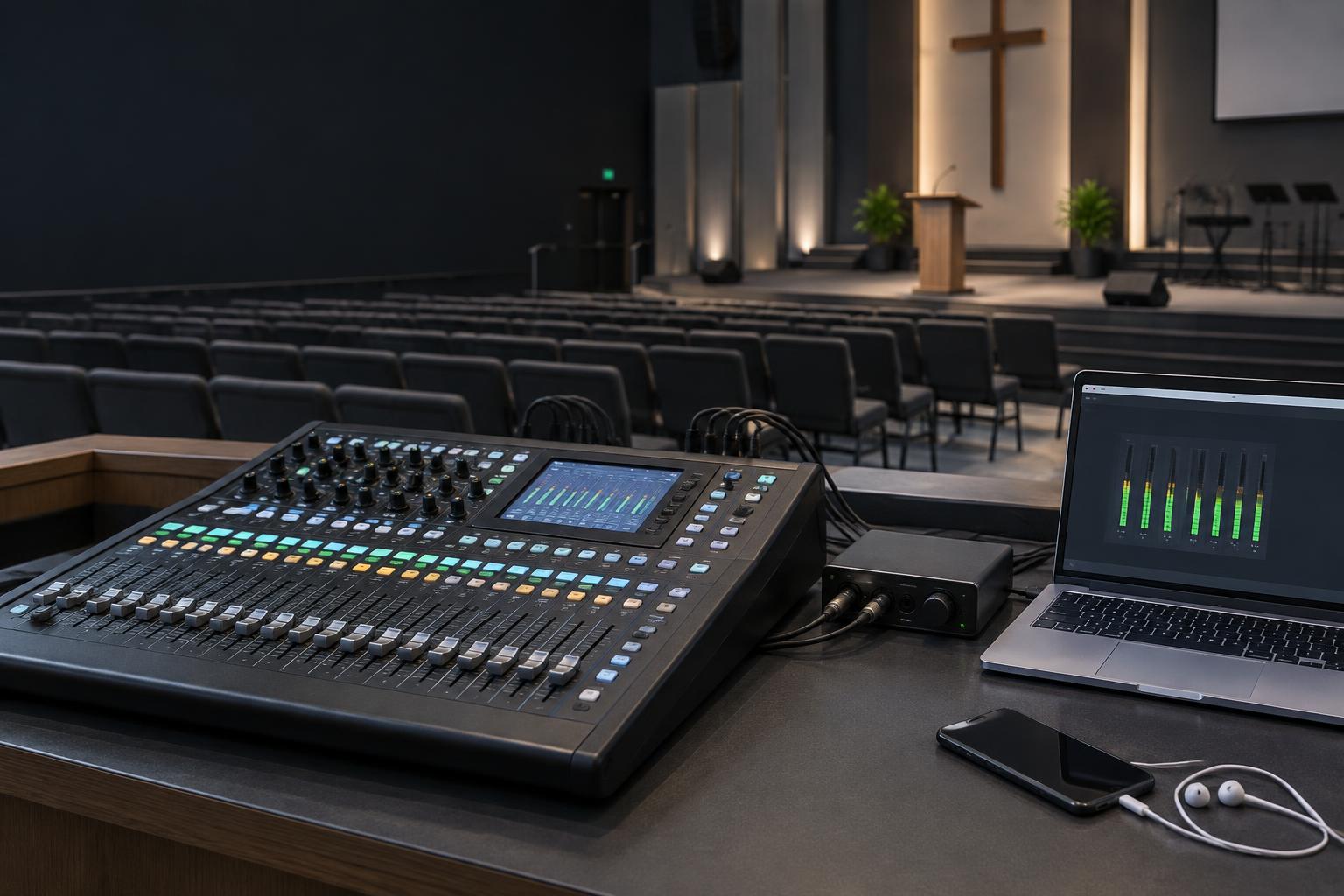

01 — Send a clear voice signal
Prepare a dedicated speech signal: the voice should remain intelligible, without loud background music or clipping.
- Connect a suitable mixer output to the computer, directly over USB if supported, or through an audio interface.
- Select the intended audio input for Translatia and allow browser access to it.
- Test with both a quiet and a louder voice. Adjust the gain if the signal clips.
- Keep translated audio out of the microphone input so it is not captured and translated again.
Exact cables and connections depend on your mixer. Ask our team to review your audio path before buying equipment.
02 — Prepare a stable connection
Live translation requires Internet access for both the computer sending audio and the participants following the service.
- Use Ethernet for the audio desk computer where possible.
- Check Wi-Fi coverage where participants sit, not only beside the mixer.
- Test several phones at once while your usual livestream is running.
- Prepare a backup Internet connection for the audio desk and test it before the service.
Capacity needs depend on your network, participant count and use of audio or text. A realistic test is more useful than a universal bandwidth estimate.
03 — Welcome your participants
Display your Translatia room’s QR code at the entrance, on a screen or in your service bulletin.
- Scan the code on a phone to confirm it opens the right room.
- Test language selection, text and, when included in your plan, voice synthesis.
- Invite participants to use earphones so translated audio does not feed back into room microphones.
- Check that the code can be read from a distance and keep the room link available.
Participants access translation in their browser. No app download is required.
04 — Prepare remote listening
Share the translation room link with people following your service online, for example in the stream description or a pinned comment.
- Test listening on a device outside your church network.
- Check the timing between your video and translation: your streaming platform may add its own delay.
- Avoid playing two audio tracks at once on a participant’s phone or computer.
- If you use OBS, vMix, YouTube Live or Facebook Live, ask our team to review your intended routing.
Sharing a link does not automatically integrate translated audio into a livestream. Your tools determine the setup, which must be verified separately.
Before your next service
- The voice reaches the software clearly.
- Internet stays stable with several participants.
- The QR code opens the correct room.
- Text and audio available in your plan have been tested.
- Translation is not sent back into the microphone.
- A team member has run a complete rehearsal.